
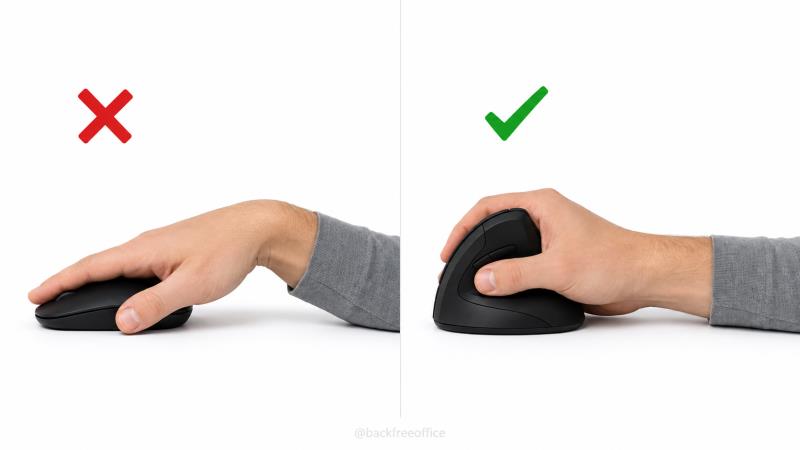
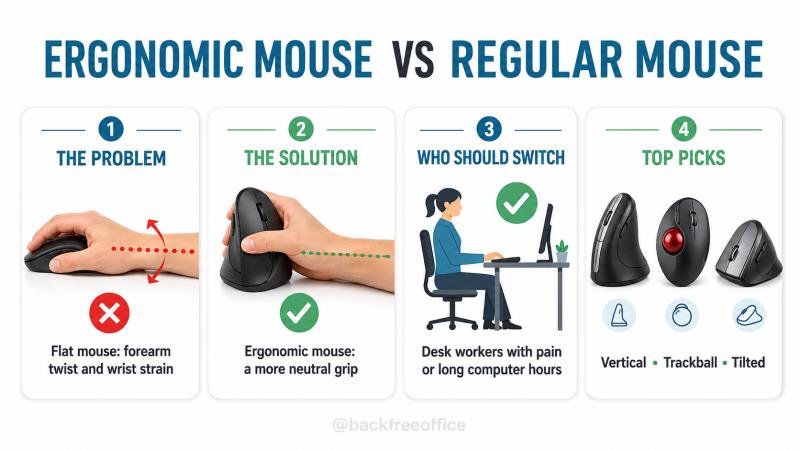
Ergonomic mouse vs regular mouse: does changing the device really matter? For many desk workers, it can. A regular flat mouse keeps the palm facing down, while an ergonomic mouse is designed to reduce forearm rotation, limit awkward wrist angles, or spread movement across larger joints.
That does not mean every “ergonomic” model will prevent pain, and a mouse cannot compensate for poor desk height, excessive reaching, or hours without a break. But the right design can make a meaningful difference when it fits your hand, your symptoms, and the work you actually do.
Ergonomic Mouse vs Regular: Why a Flat Mouse Can Cause Problems
A conventional mouse is familiar, inexpensive, and precise. The problem is not that it is automatically harmful; it is that its low, flat shape often encourages three positions that may become uncomfortable when repeated for hours.
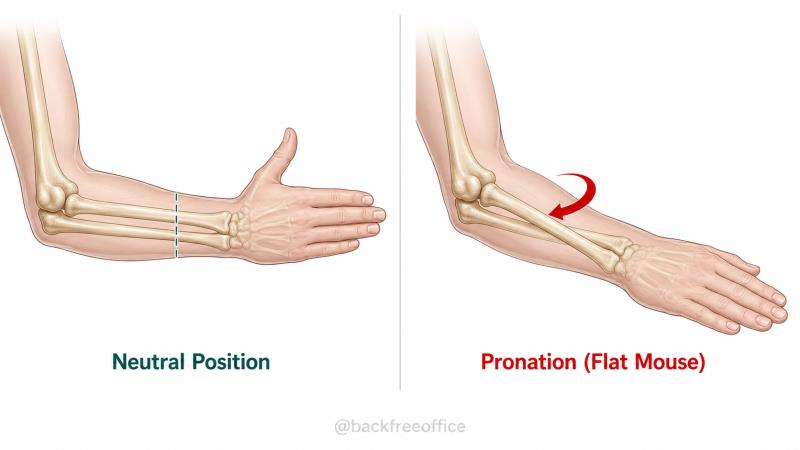
Forearm pronation
With a flat mouse, the palm faces the desk. This rotates the radius over the ulna in a position called pronation. Pronation is a normal movement, but holding it for long periods can increase muscular effort in the forearm. A vertical mouse reduces this rotation by placing the hand closer to a neutral “handshake” position.
Wrist extension and side bending
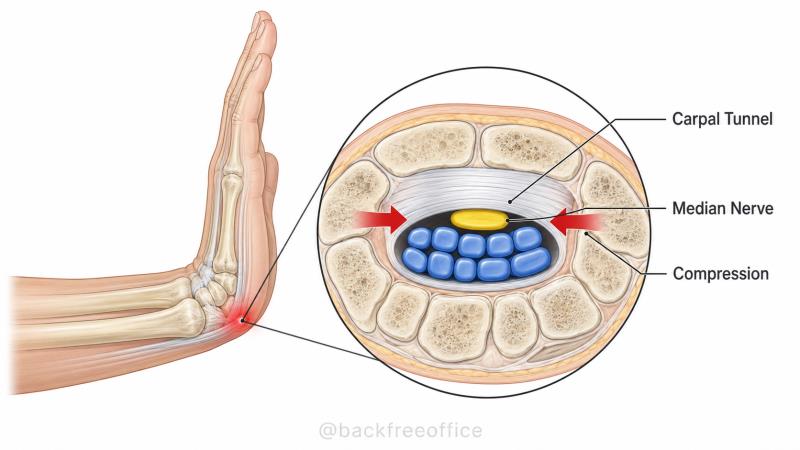
Many people operate a mouse with the wrist bent upward or angled toward the little-finger side. These positions can narrow the carpal tunnel and load the tendons that cross the wrist. The device is only part of the equation: reaching for a mouse that is too far away can also pull the wrist and shoulder out of neutral.
If you also feel discomfort while keyboarding, see why your wrists hurt when typing and how to fix it.
Repetitive strain and static effort
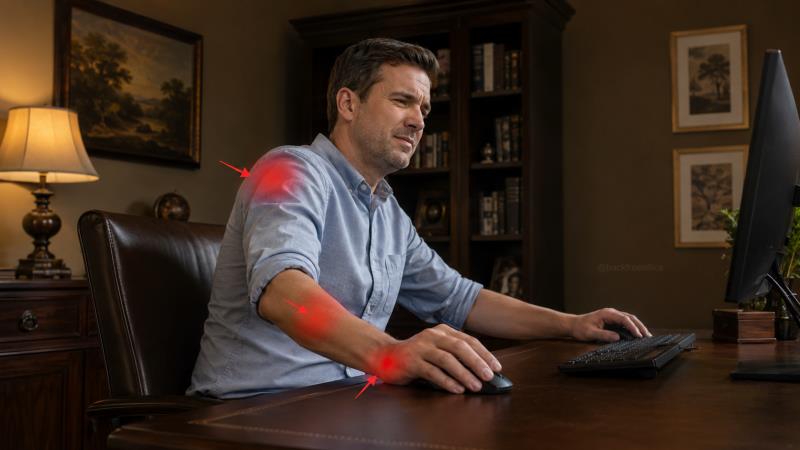
Mouse work combines small repeated movements with low-level static muscle activity. Problems are more likely when clicking is intensive, the mouse is gripped tightly, the arm is unsupported, or the same posture is held without recovery. Symptoms may appear in the fingers and wrist, but they can also travel through the forearm, elbow, shoulder, and neck.
Three Main Types of Ergonomic Mouse
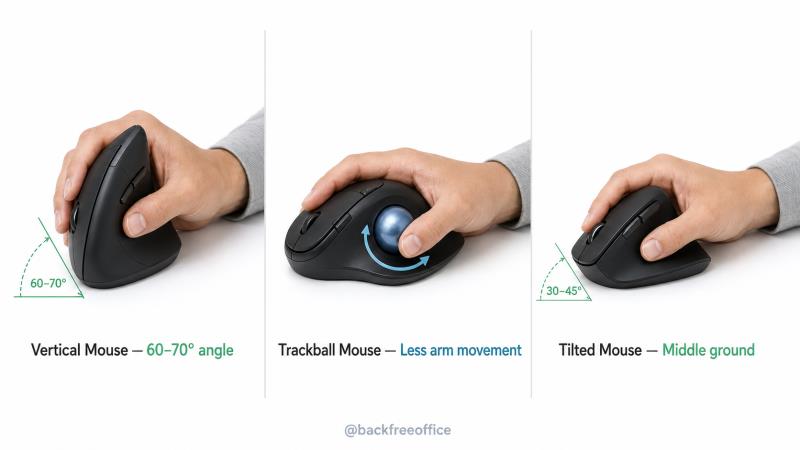
1. Vertical mouse
A vertical mouse rotates the buttons onto the side so the thumb points upward. It reduces forearm pronation and can suit people whose main complaint is wrist or forearm tension. It still moves across the desk, so it needs adequate space and should be positioned close to the keyboard.
Best for: users who want a neutral handshake grip without changing the basic point-and-move technique.
2. Trackball mouse
A trackball stays in one place while the thumb or fingers roll a ball to move the pointer. Because the device does not travel, it can reduce shoulder movement and works well on small desks. The trade-off is more concentrated thumb or finger activity, which may not suit everyone.
Best for: limited desk space, shoulder discomfort from reaching, or users who prefer minimal arm movement.
3. Tilted or contoured mouse
A tilted mouse uses a moderate angle rather than a fully upright grip. A contoured body supports the palm and may feel more familiar than a vertical design. This is often the easiest transition for people who want less pronation while retaining conventional mouse control.
Best for: first-time ergonomic-mouse users and people who value precision with a shorter adjustment period.
Ergonomic Mouse vs Regular: What the Research Actually Says
Research supports a careful conclusion rather than a miracle claim. Alternative mouse designs can improve wrist and forearm posture, and some users report less discomfort. However, results vary because studies use different devices, tasks, follow-up periods, and participant groups.
A controlled study indexed by PubMed found that alternative mouse designs changed upper-limb posture and muscle activity. A systematic review of workplace interventions also shows why equipment changes should be considered as one part of a broader ergonomic plan rather than a stand-alone cure.
Bottom line: an ergonomic mouse may reduce exposure to particular awkward positions. It does not diagnose or treat carpal tunnel syndrome, tendon disorders, arthritis, or nerve problems. Persistent numbness, weakness, night pain, swelling, or symptoms that keep worsening should be assessed by a qualified clinician.
Who Should Consider Switching?
You are more likely to benefit if you:
- use a mouse for several hours most workdays;
- notice wrist, forearm, elbow, or shoulder fatigue during mouse use;
- grip a flat mouse tightly or rest the wrist in a bent position;
- have limited desk space and repeatedly reach away from the keyboard;
- perform design, spreadsheet, editing, coding, or other pointer-heavy work; or
- want to vary hand position before discomfort becomes persistent.
If you are comfortable, take regular breaks, and maintain a relaxed neutral posture, you may not need to replace a regular mouse. The best device is the one that lets you work with low effort and without provoking symptoms.
How to Choose the Right Mouse for You
1. Start with your symptoms and task
Forearm rotation discomfort may point toward a vertical design. Shoulder discomfort from moving the whole device may make a trackball worth trying. If precise pointer control is essential, a gently tilted contoured mouse can be an easier starting point.
2. Match the mouse to your hand size
Your palm should rest without being stretched, and you should reach the buttons without lifting the fingers. A mouse that is too large forces the hand open; one that is too small encourages clawing and a tighter grip. Left-handed users should also check whether the model is ambidextrous or has a dedicated left-hand version.
3. Check your grip
Keep the hand relaxed and use only enough force to control the device. High sensitivity can reduce travel, but a setting that is too fast increases corrective movements. Adjust pointer speed gradually until you can reach the full screen without repeated wrist flicks.
4. Consider your actual work
Extra buttons can reduce repeated keyboard reaches, while quiet switches may matter in shared spaces. Designers and gamers may prioritize sensor accuracy. Frequent travelers may value a smaller wireless design, but a compact mouse should still fit the hand.
5. Fix the mouse position
Place the mouse next to the keyboard at approximately the same height. Keep the elbow near the body, shoulders relaxed, and forearm supported without pressing the wrist into a hard edge. Use the full Complete Ergonomic Desk Setup Checklist to correct the rest of the workstation.
My Top Ergonomic Mouse Picks for 2026
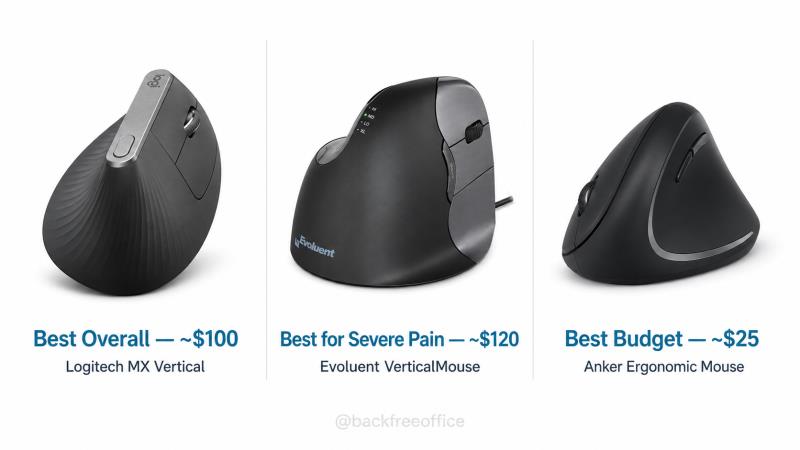
Logitech MX Vertical — Best Overall
The MX Vertical combines a 57-degree angle, a comfortable sculpted body, adjustable pointer speed, and multi-device connectivity. It is a strong all-round option for medium-to-large hands and people who want premium controls without moving to a trackball.
Pros: polished shape, rechargeable battery, multiple connection methods, useful productivity controls.
Cons: premium price, may feel large for small hands.
Evoluent VerticalMouse — Best for a More Upright Grip
Evoluent’s long-running vertical design places the hand in a more upright position and is available in multiple sizes and left-handed versions. It suits users who want to minimize pronation and are willing to accept a more noticeable learning curve.
Pros: pronounced vertical posture, size choices, dedicated left-handed options.
Cons: bulky shape, higher cost, less familiar at first.
Anker Wireless Vertical Ergonomic Mouse — Best Budget
Anker’s vertical mouse provides the basic handshake-style concept at a lower entry price. It is a sensible way to test whether a vertical grip feels helpful before investing in a premium model.
Pros: affordable, simple, wireless.
Cons: lighter materials, fewer customization options, shape may not suit every hand.
Prices and availability change, so compare current specifications before buying. If the mouse is only one part of your discomfort, you may also benefit from reviewing the best lumbar support cushions for office chairs.
Expect an Adjustment Period
A new device changes a movement pattern that may have been practiced for years. Mild awkwardness during the first few days is common; increasing pain is not. Begin with short sessions, keep the regular mouse available, and increase use gradually over one to two weeks.
Do not force the hand into the device. If a particular shape causes tingling, thumb pain, or greater tension, stop and try a different size or design.
Key Takeaway
An ergonomic mouse can matter because it changes how the forearm, wrist, fingers, and shoulder share the work. The greatest benefit comes from matching the design to the user and combining it with correct placement, relaxed technique, task variation, and regular movement breaks.
Final Verdict: Does an Ergonomic Mouse Matter?
For heavy mouse users or people whose symptoms are aggravated by a flat palm-down grip, the answer is often yes. A vertical, trackball, or tilted mouse can reduce specific awkward postures and make long sessions more comfortable. For someone who is symptom-free and already works with a neutral, relaxed setup, the improvement may be smaller.
Treat the mouse as one adjustable part of the workstation, not as medical treatment or a universal solution. The most effective choice is comfortable in your hand, supports your work, and allows you to operate it without tension.
Frequently Asked Questions
Is an ergonomic mouse better than a regular mouse?
It can be better for users who experience discomfort or prolonged palm-down posture, but no single mouse is best for everyone. Fit, task, placement, and technique determine whether the design helps.
Can an ergonomic mouse help carpal tunnel syndrome?
It may reduce wrist extension or forearm rotation that aggravates symptoms, but it does not treat the underlying condition. Numbness, weakness, night symptoms, or persistent pain should be assessed by a clinician.
Is a vertical mouse better than a trackball?
A vertical mouse is often better for reducing forearm pronation while preserving normal mouse movement. A trackball is often better when desk space is limited or shoulder movement is the main concern.
How long does it take to get used to a vertical mouse?
Many users adapt within several days, while others need one to two weeks. Begin with short sessions and increase use gradually.
What is the best ergonomic mouse for small hands?
Choose a compact model that lets the palm rest and the fingers reach every button without stretching. Hand-size fit is more important than the brand name.
Should I use a wrist rest with an ergonomic mouse?
A soft palm support may be useful during pauses, but avoid anchoring or pressing the wrist into it while actively moving the mouse. Support the forearm and move from the elbow and shoulder when practical.