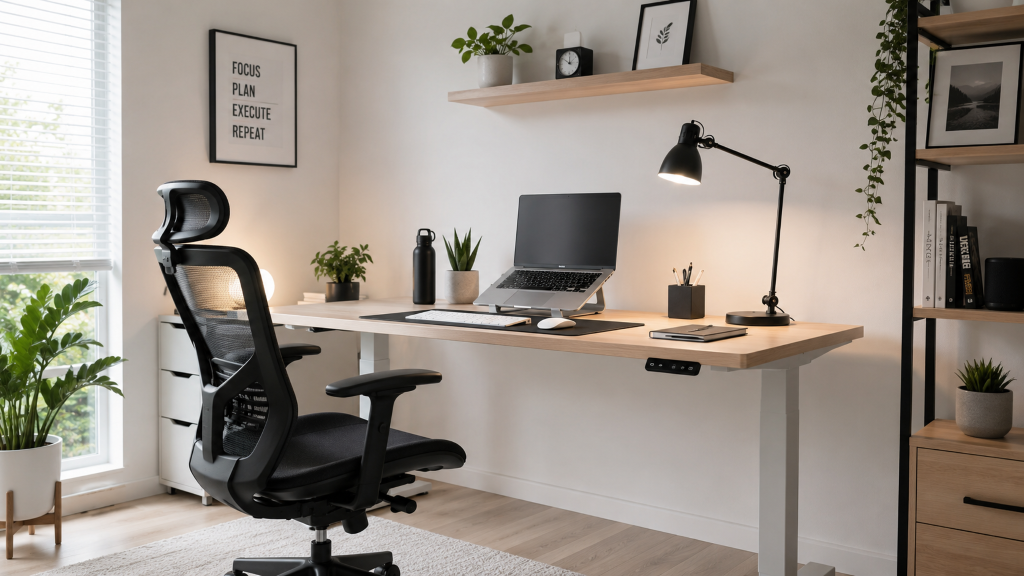
Ergonomic desk setup checklist: A comfortable workstation does not depend on one perfect measurement. It depends on arranging your chair, work surface, monitor, keyboard and mouse so that your body is supported, frequently used equipment is within easy reach and you can change position regularly.
Use this checklist as a starting point rather than a medical prescription. Body dimensions, vision, equipment and work tasks differ, so adjust each recommendation to what allows you to work without leaning, reaching or holding an awkward position.
If you experience persistent pain, numbness, weakness or symptoms that spread into an arm or leg, consult a qualified healthcare professional.
Chair Adjustments: Your Foundation
Start by adjusting your chair fit. The goal is a supported position that lets you reach the keyboard and view the monitor comfortably while still allowing you to change posture.
Seat Height
- Sit back against the backrest.
- Support both feet on the floor or on a stable footrest.
- Keep your thighs approximately parallel to the floor, with adequate clearance beneath the desk.
- Adjust the chair and work surface together so your shoulders remain relaxed while typing.
Seat Depth
- Sit with your back supported by the backrest.
- Check that the front edge of the seat does not press into the backs of your knees.
- Use the chair’s seat-depth adjustment, if available, to support your thighs without restricting circulation or knee movement.
- If the seat cannot be adjusted to fit, consider a chair with a more suitable seat pan rather than forcing your body into position.
Lumbar Support
- Position the support so it follows the natural inward curve of your lower back.
- Use enough support to feel stable without creating uncomfortable pressure.
- If your chair lacks adjustable support, a small towel roll or lumbar support cushion may be worth trying, provided it does not push you too far forward.
Armrests
- Relax your shoulders and keep your elbows close to your body.
- Adjust the armrests so they support the forearms lightly without lifting the shoulders.
- If the armrests prevent you from getting close to the desk, lower or reposition them.
Recline and Tilt
- Adjust the recline tension so the backrest supports you without making you brace or feel as though you are falling backward.
- Use a comfortable supported angle for the task.
- Change position periodically instead of remaining fixed in one posture.
Desk and Keyboard Height
Adjust the work surface or keyboard tray so your shoulders remain relaxed, your elbows stay close to your body and your wrists remain straight while typing.
Seated Work
- Place the keyboard around elbow height.
- Keep the forearms approximately parallel to the floor or angled slightly downward.
- If a fixed desk is too high, raising the chair may help, but use a stable footrest if your feet no longer reach the floor.
- If the desk is too low, consider a suitable desk riser or an adjustable keyboard tray.
Standing Work
- Set the keyboard near elbow height with the wrists straight.
- Keep frequently used equipment close enough that you do not lean or reach.
- Avoid prolonged sitting or standing. Change position and include movement during the workday.
For a closer comparison, see Standing Desk vs Sitting Desk.
Monitor Position
Position the primary monitor directly in front of you. Set the top of the screen at or below eye level so you can view it without bending your neck. Place it far enough away to read comfortably without leaning forward—roughly an arm’s length is a useful starting point.
- Increase text size or display scaling if you cannot read the screen comfortably.
- Tilt and position the screen to reduce glare from windows and overhead lights.
- When using two monitors, keep the primary screen directly in front. If both are used equally, place them together within a comfortable viewing angle.
- People who use bifocals or progressive lenses may need the monitor lower to avoid tilting the head backward.
- Laptop users should consider a separate keyboard and mouse so the screen and input devices can be positioned independently.
Keyboard and Mouse Placement
Neutral wrist positioning can help reduce unnecessary strain. If you already have wrist pain from typing, review your equipment and work habits rather than relying on a single accessory.
Keyboard
- Place the keyboard directly in front of you and center the section you use most often with your body.
- Keep your shoulders relaxed, elbows close to your sides and wrists straight.
- Adjust keyboard height and tilt to avoid bending the wrists up, down or sideways.
- If a wide keyboard forces the mouse too far away, consider a compact keyboard or a separate numeric keypad.
Mouse
- Place the mouse beside the keyboard, close enough that your elbow remains near your body.
- Keep the wrist aligned with the forearm and avoid reaching from the shoulder.
- A vertical mouse, trackball or another design may improve comfort for some people, but no design fits everyone.
Wrist Rests and Desk Edges
- Use a wrist or palm rest mainly during pauses rather than pressing into it while actively typing.
- Avoid resting the wrists or forearms against sharp, hard desk edges.
- Pad or reposition surfaces that create contact pressure, which may irritate nerves or restrict blood flow.
Feet and Under-Desk Clearance
- Support both feet on the floor or on a stable footrest.
- Use a footrest when your feet cannot rest flat after the chair and keyboard have been positioned correctly.
- Leave adequate clearance so your thighs, knees and feet are not trapped or pressed against the desk.
- Remove clutter, sharp edges or support bars that prevent you from getting close to the keyboard.
- Change leg position occasionally rather than forcing one fixed position all day.
A Simple Daily Reset
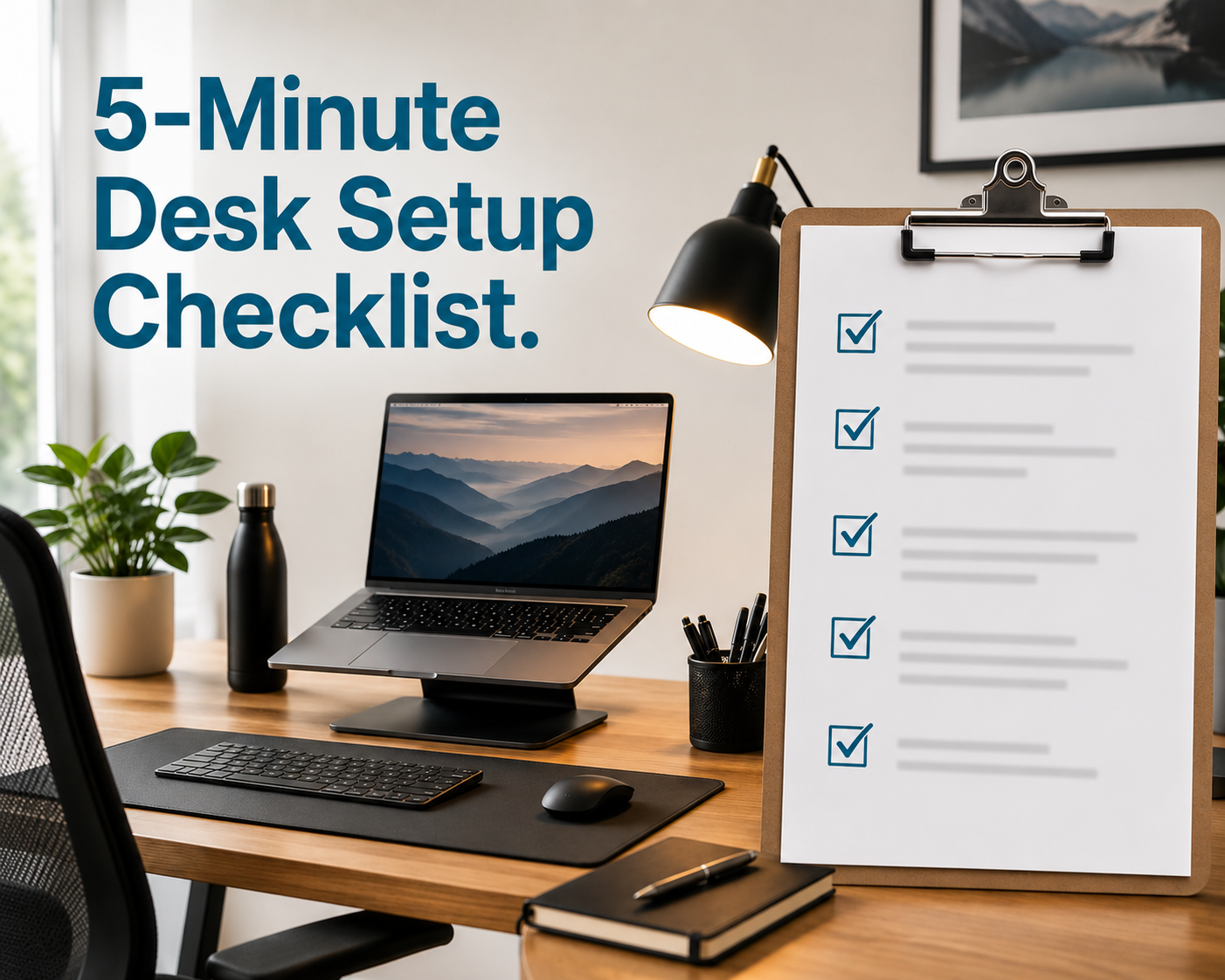
Recheck these five points at the beginning of the day and whenever your setup starts to feel uncomfortable:
- Back supported by the backrest.
- Feet supported by the floor or a footrest.
- Monitor positioned for comfortable viewing without leaning.
- Wrists straight and input devices within easy reach.
- Shoulders relaxed, with elbows close to the body.
Movement and Recovery Breaks
No single posture should be treated as perfect for the entire day. Change position regularly, vary computer tasks when possible and take short recovery breaks away from the screen.
A practical starting point is a brief movement break each hour, then adjusting the frequency to your comfort, tasks and workplace requirements. Stand, walk or gently move through a comfortable range rather than waiting until discomfort becomes intense.
A supportive setup should help you work without unnecessary reaching, leaning or pressure from the equipment around you. Treat these recommendations as starting points, make small adjustments and change position regularly. If an adjustment increases pain, numbness or weakness, stop and seek appropriate professional advice.