
How High Should Your Monitor Be? (The 1-Second Test)
Let me tell you about the day I realized my monitor was slowly destroying my neck. I was on a video call, caught my reflection in the dark screen, and saw it: my chin was jutting forward like a turtle peeking out of its shell. I’d been sitting like that for two years.
Here’s the thing—most of us set our monitor height once, forget about it, and spend the next decade wondering why our shoulders feel like concrete. The answer is almost always the same: your screen is too low.
The 1-Second Test That Changes Everything
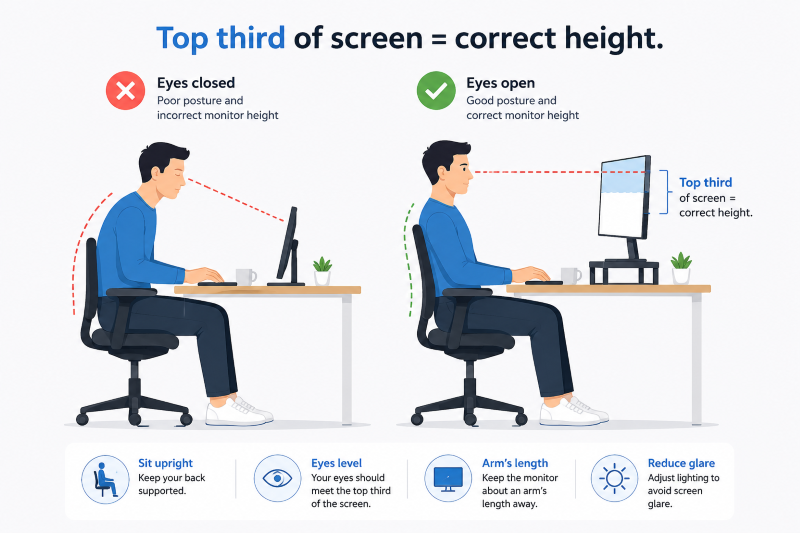
Close your eyes. Sit up comfortably in your chair. Open your eyes and look straight ahead—not up, not down, just naturally forward. Where does your gaze land?
If it’s anywhere other than the top third of your monitor screen, your height is wrong. That’s it. That’s the test.
When you look at a correctly positioned monitor, your eyes should meet the screen about 2 to 3 inches below the top edge of the monitor casing. The center of the screen should fall roughly 15 to 20 degrees below your horizontal gaze. This isn’t random—your eyes naturally rest in a slightly downward position, so this angle reduces strain without forcing your neck to bend.
Why Most People Get This Wrong
The default monitor stands that come with most screens are designed for the average person. And by “average,” I mean someone who doesn’t exist. They’re too low for anyone over 5’7″ and often too high for shorter folks. The result? You adapt—and your spine pays the price.
When your monitor is too low, you drop your chin and hunch forward. That’s “tech neck” in action. Your 10-12 pound head suddenly exerts up to 50 pounds of force on your cervical spine at a 45-degree angle. That pressure doesn’t just feel bad—it damages discs over time.
Too high is just as bad. Tilt your head back for eight hours and your neck muscles work overtime to keep your eyes on the screen. Neither position is sustainable.
The “Arm’s Length” Rule
Height isn’t the only factor. Distance matters just as much.
Your monitor should be positioned about an arm’s length away from your seated position. For most people, this means 20 to 40 inches between your eyes and the screen surface. Here’s the test: extend your arm straight out. Your fingertips should just about touch the screen.
If you’re leaning forward to read text, move the monitor closer or increase your font size. If you’re squinting, you’re too far. This distance reduces eye strain and keeps your head in a neutral, comfortable position.
Tilt Matters More Than You Think
Most people overlook tilt, but it’s a game-changer.
Angle the top of your monitor back 10 to 20 degrees. This slight backward lean keeps the screen surface roughly perpendicular to your line of sight, reducing glare and making text uniformly sharp from top to bottom. Without it, the bottom of the screen is actually closer to your eyes than the top, forcing your eyes to constantly refocus.
Bifocal or progressive lens wearers? Lower the monitor below eye level and tilt the screen back 30 to 45 degrees so you can look down through your reading lenses without craning your neck. This one change eliminates a massive source of pain for glasses users.
Dual Monitors: The Setup Secret
If you use two screens, center your primary monitor directly in front of you. Position the secondary monitor slightly to the side, angled toward you. The inner edges should meet right in front of your nose if you use both equally.
Never place one monitor off to the side as your primary. Even a moderate offset forces you to twist your neck for hours, leading to one-sided muscle fatigue and tension headaches.
The Complete Checklist
Here’s everything you need to dial in your monitor:
- Height: Top of screen at or just below eye level (2-3 inches below the top edge)
- Distance: Arm’s length away (20-40 inches, adjusted for screen size)
- Tilt: 10-20 degrees backward (30-45 degrees for bifocal users)
- Position: Centered directly in front of you, not off to one side
- Lighting: Monitor perpendicular to windows, no direct glare on the screen
What to Do If You Can’t Adjust Your Monitor
Not everyone has a height-adjustable monitor stand. Here are your workarounds:
- Monitor arms attach to your desk and allow infinite adjustment in seconds
- Monitor risers or stands are portable and offer several height settings
- Laptop stands work if you use a laptop as your primary screen (but you’ll need an external keyboard and mouse)
Stack of books? I’ve used them. It’s not elegant, but it works.
The Final Rule
Here’s the non-negotiable: never stay in any position for more than 45 minutes. Even a perfectly positioned monitor won’t save you if you freeze. Use the 20-20-20 rule—every 20 minutes, look at something 20 feet away for 20 seconds. Move your neck. Roll your shoulders. Walk to the kitchen.
Your screen is too low. I promise. Go do the 1-second test right now and adjust accordingly. Your neck will thank you in five years.
Key Takeaway Box
| Element | Correct Setting |
| Height | Top of screen at or just below eye level (2-3″ below top edge) |
| Eye Line | Gaze falls on top third of screen |
| Distance | Arm’s length (20-40 inches) |
| Tilt | 10-20° back (30-45° for bifocal users) |
| Position | Centered directly in front, not off to the side |
| Rule | Change position every 45 minutes minimum |
One-second test: Close eyes, open naturally. Where you look is where your screen should be. Adjust until its right.